HPE Aruba Central
Overview
Aruba Central provides a centralized platform for the management and monitoring of network infrastructure.
It includes comprehensive event collection and audit log management capabilities, allowing you to maintain detailed records of network changes, user activities, and security events.
This Pack Includes
Data Normalization and Querying Capabilities
- Data modeling rules to normalize Aruba Central logs that are ingested via the HPEArubaCentralEventCollector integration into Cortex XSIAM.
- Querying ingested logs in XQL Search using the aruba_central_raw dataset.
Supported Log Category
- Audit
- Network
Enable Data Collection
Configure HPE Aruba Central
The pack includes the HPE Aruba Central Event Collector integration that allows you to fetch networking events and audit logs from Aruba Central.
How to generate Client ID and Client Secret
Go to the Aruba Central portal and navigate to Accounts Home > Global Settings > API Gateway.
- Admin users: Navigate to System Apps & Tokens.
- Non-admin users: Navigate to My Apps & Tokens.
Click the My Apps & Tokens.
Click + Add Apps & Tokens.
In the New Token pop-up window:
4.1 Enter the Application Name.
4.2 Optional - enter the Redirect URL.
4.3 Select the application type from the Application drop-down.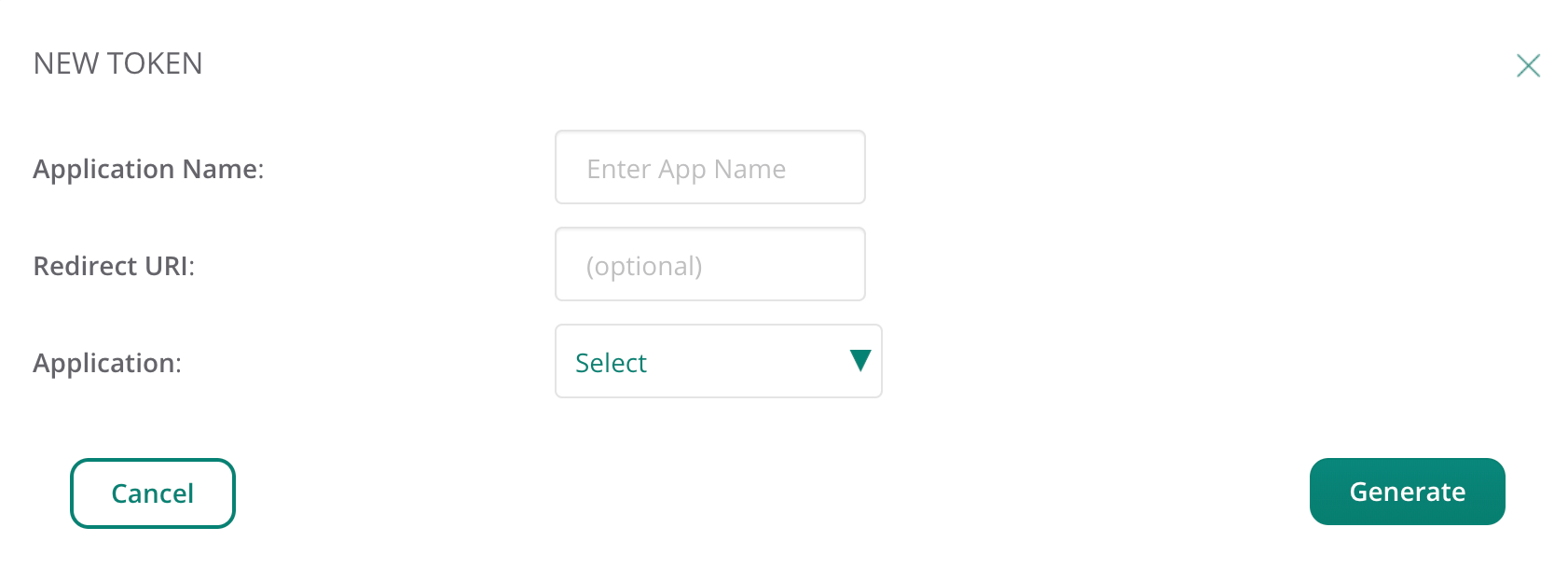
Click Generate.
Once created, the new credentials can be viewed in the My Apps & Tokens tab.
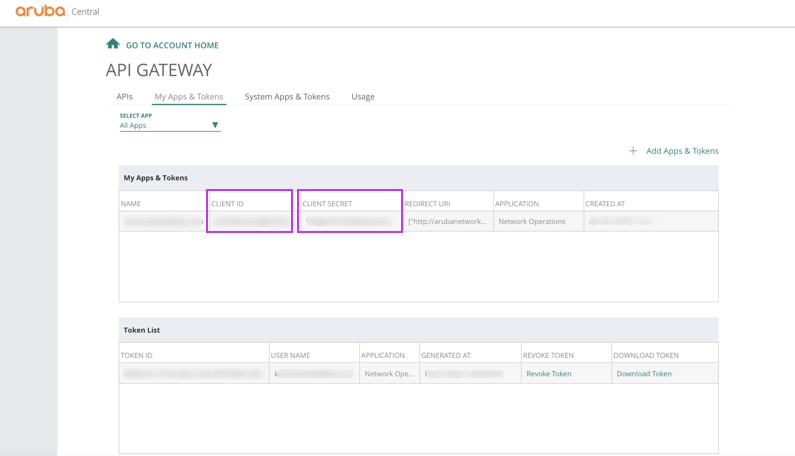
For more details on how to create Application & Token click here
Product Documentation
Configure Cortex XSIAM
- Navigate to Settings -> Data Sources.
- On the top right corner, click + Add Data Source.
- Search for HPE Aruba Central and click Connect.
- Under Connect, insert the name for the instance.
- Insert the Server URL.
- Insert the Client ID.
- Insert the Client Secret.
- Insert the Customer ID.
- Insert the Username.
- Insert the Password.
- Under Collect, select Fetch events checkbox.
11.1 Optional - under Collect, select Fetch networking events checkbox. - Define Events Fetch Interval.
- Click Connect.
For more information go to Aruba Central Documentation